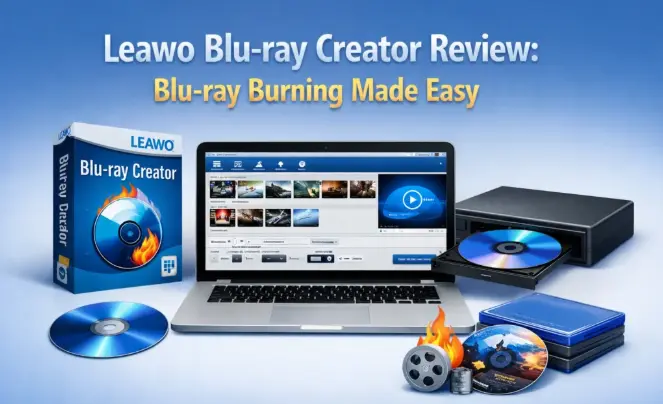
As streaming becomes dominant, physical media like Blu-ray discs still play an important role for users who value long-term storage, high-quality playback, and full control over their video collections. Whether you want to archive family videos, distribute professional content, or convert video to DVD or Blu-ray for home entertainment systems, having reliable software is essential. In this Leawo Blu-ray Creator review, we explore whether this tool lives up to its reputation as a powerful and user-friendly Blu-ray burning software.
Overview of Leawo Blu-ray Creator
Leawo Blu-ray Creator is a dedicated Blu-ray creator designed to help users burn videos to Blu-ray or DVD discs, folders, or ISO files. It supports a wide range of video formats, including MP4, MKV, AVI, MOV, WMV, and more, making it suitable for both casual users and professionals.
Unlike basic disc-burning tools, Leawo Blu-ray Creator goes beyond simple file writing. It functions as full Blu-ray authoring software, offering menu creation, background music, subtitle handling, and video editing options. This combination positions it as a strong candidate for anyone searching for the best Blu-ray burner for home or small business use.
Key Features & Performance of Leawo Blu-ray Creator
Wide Format Compatibility
One of the biggest strengths of this Blu-ray burner is its extensive format support. Users can import almost any standard video file and convert it into a Blu-ray or DVD format that plays smoothly on standalone players.
It supports:
- Blu-ray discs (BD25, BD50)
- DVD discs (DVD-5, DVD-9)
- Blu-ray/DVD folders and ISO images
This makes it ideal for both how to burn Blu-ray beginners and advanced users.
Built-in Menu Templates
Leawo Blu-ray Creator includes multiple customizable menu templates. You can personalize:
- Background images or videos
- Button styles and layouts
- Menu titles and chapters
This feature is especially valuable for creating professional-looking discs without needing advanced design skills.
Basic Video Editing Tools
Before burning, users can edit videos directly within the software:
- Trim unwanted parts
- Crop video frames
- Adjust brightness, contrast, and saturation
- Add watermarks
These tools eliminate the need for separate video editors, saving time and simplifying workflows.
Subtitle and Audio Track Support
Leawo Blu-ray Creator allows users to add or select multiple subtitle and audio tracks. This is useful for multilingual content or accessibility purposes, and it enhances its reputation as reliable Blu-ray authoring software.
Stable Performance and Speed
In testing scenarios, the software performs consistently with minimal crashes. Hardware acceleration support helps reduce conversion and burning time, especially on modern systems.
How to Burn Blu-ray with Leawo Blu-ray Creator?
For users wondering how to burn Blu-ray step by step, Leawo Blu-ray Creator keeps the process straightforward.
Step 1: Install and Launch the Software
Download and install Leawo Blu-ray Creator on your Windows or macOS computer, then open the program.
Step 2: Add Video Files
Click “Add Video” to import your source files. You can add multiple videos at once, making it easy to create compilation discs.
Step 3: Edit and Customize
Optional but useful:
- Edit videos using built-in tools
- Choose subtitles and audio tracks
- Select or customize a disc menu
Step 4: Choose Output Settings
Select Blu-ray or DVD as your output format. Insert a blank disc or choose to create an ISO file or folder instead.
Step 5: Start Burning
Click “Burn” and let the software handle the rest. Once completed, your disc is ready for playback on compatible devices.
This intuitive workflow makes Leawo accessible even to users new to video to DVD or Blu-ray creation.
FAQs
Is Leawo Blu-ray Creator safe to use?
Yes. Leawo Blu-ray Creator is a legitimate commercial product developed by a well-known software company. When downloaded from the official website, it is free from malware or hidden software.
Can Leawo Blu-ray Creator burn both DVDs and Blu-rays?
Yes. It supports DVD and Blu-ray disc creation, as well as ISO files and folders, making it versatile for different needs.
Does it support 4K video?
Leawo Blu-ray Creator can process high-resolution video files, but final output quality depends on Blu-ray format limitations and source compatibility.
Is Leawo Blu-ray Creator beginner-friendly?
Absolutely. Its clean interface and guided steps make it suitable for beginners, while advanced options satisfy experienced users.
How does it compare to other tools?
Compared to many alternatives, Leawo offers a strong balance of usability, features, and stability. For a broader comparison, this guide to
👉 Blu-ray authoring software
is a helpful reference.
Conclusion
This Leawo Blu-ray Creator review shows why the software continues to be a popular choice for users who want reliable and flexible disc creation. It combines wide format support, menu customization, editing tools, and stable performance into a single package.
If you’re looking for:
- A dependable Blu-ray burning software
- An easy way to convert video to DVD or Blu-ray
- A practical solution for home or professional disc creation
Then Leawo Blu-ray Creator is well worth considering. While it may not replace high-end studio authoring tools, it delivers excellent value for everyday users and stands out as one of the best Blu-ray burner options available today.
Final verdict: Simple, capable, and efficient—Leawo Blu-ray Creator truly makes Blu-ray burning easy.
Also Read-Future Trends in Emergency Vehicle Technology
- Advanced Energy Systems: Exploring Modern Power Technology Solutions
- Essential Cybersecurity Tactics for Modern Businesses